# pgAdmin
> Register a PostgreSQL server in pgAdmin, browse database objects, and run SQL in the graphical query tool.
---
LLMS index: [llms.txt](/en/llms.txt)
---
pgAdmin is a widely used graphical tool for managing PostgreSQL databases. It simplifies common database administration tasks, provides an interface for exploring database objects, and allows users to execute SQL queries.
For many years, pgAdmin 3 was the de facto standard for PostgreSQL administration. However, in 2016, EnterpriseDB discontinued support for pgAdmin 3 and introduced pgAdmin 4, which was completely rewritten in Python and modern web technologies, replacing the original C++ implementation. Initially, pgAdmin 4 received mixed reviews due to its redesigned interface. However, ongoing development has led to significant improvements, making it a more robust and feature-rich tool.
## Installation {#intro-section-8-1}
To launch pgAdmin 4 on Windows, use the installer available at [pgadmin.org/download.]() The installation procedure is straightforward, and the default options are typically sufficient.
For Debian and Ubuntu, add the PostgreSQL repository (see p. [30](/en/03-installation-and-quick-start/#intro-section-3-2)), then install pgAdmin 4 using the following command:
```bash
$ sudo apt-get install pgadmin4
```
“pgAdmin4” appears in the list of available programs.
The user interface of this program is fully localized into a dozen languages. To switch to another language, click **Configure pgAdmin**, select **Miscellaneous > User language** in the settings window, and then reload the page in your web browser.
## Connecting to a Server {#intro-section-8-2}
To begin, set up a connection to the server. Click the **Add New Server** button and enter an arbitrary connection name in the **General** tab of the opened window.
In the **Connection** tab, enter hostname or address, port number, username, and password.
If you don’t want to enter the password every time, select the **Save password** checkbox. pgAdmin encrypts stored passwords using a master password, which you will be prompted to set upon first use.
Note that this user must already have a password. For example, for the `postgres` user, you can do it with the following command:
```psql
postgres=# ALTER ROLE postgres PASSWORD 'p@ssw0rd';
```
Click **Save** to verify the server connection and add it to pgAdmin.
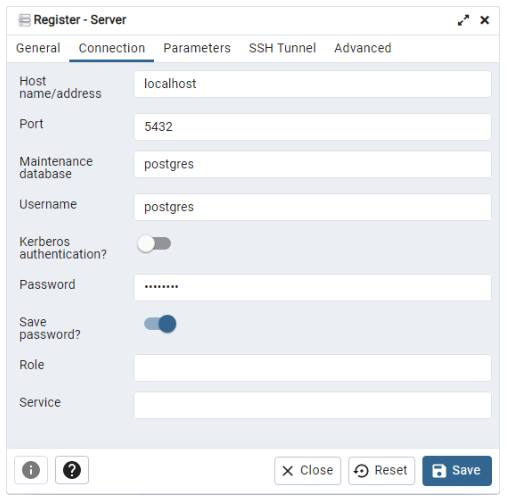
{#intro-fig-8-1 num="8.1" caption="Registering a server in pgAdmin" .book-original-figure width=337 height=333}
## Browser {#intro-section-8-3}
The left pane displays the Browser tree. Expanding the tree reveals the server, labeled `LOCAL` in this example. At the next level, you can see all its databases:
- `appdb` has been created to check connection to PostgreSQL using different programming languages.
- `demo` is our demo database.
- `postgres` is always created when PostgreSQL gets installed.
- `test` was used in the “Trying SQL” chapter (p. [35](/en/04-trying-sql/#intro-chapter-4)).
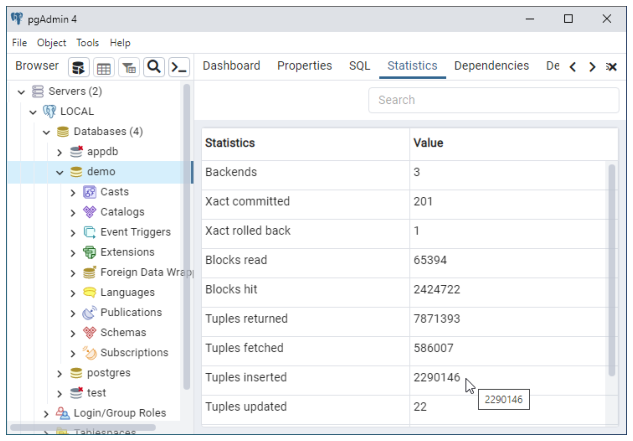
{#intro-fig-8-2 num="8.2" caption="Browsing database objects in pgAdmin" .book-original-figure width=422 height=294}
Expanding the **Schemas** section under `appdb` reveals the `greetings` table, along with its columns, constraints, indexes, and triggers.
The context (right-click) menu provides various actions for each object type, including exporting, importing, assigning privileges, and deleting.
The right pane includes several tabs that display reference information:
- **Dashboard** provides system activity charts.
- **Properties** displays the properties of the object selected in the Browser (data types for columns, etc.)
- **SQL** shows the SQL command used to create the selected object.
- **Statistics** lists information used by the query optimizer to build query plans; it can be used by a database administrator for case analysis.
- **Dependencies, Dependents** illustrates dependencies between the selected object and other objects in the database.
## Running Queries {#intro-section-8-4}
To execute a query, open a new SQL editor tab by selecting **Tools > Query Tool** from the menu.
Type your query in the editor and press F5 to execute it. The **Data Output** tab in the bottom panel will display the result of the query.
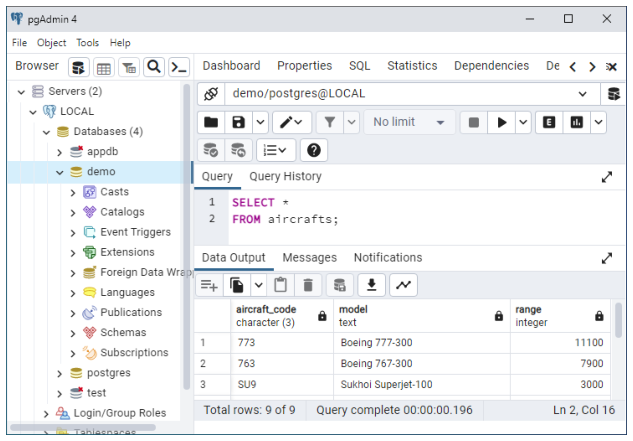
{#intro-fig-8-3 num="8.3" caption="Running a query in pgAdmin" .book-original-figure width=422 height=294}
To execute a new query without deleting the previous one, highlight the desired portion of SQL before pressing F5. Thus, the whole history of your actions will be always in front of you. It is usually more convenient than searching for the required query in the log on the **Query History** tab.
## Other Features {#intro-section-8-5}
pgAdmin provides a graphical user interface for standard PostgreSQL utilities, system catalog information, administration functions, and SQL commands. pgAdmin includes a built-in PL/pgSQL debugger for troubleshooting stored procedures. You can learn about pgAdmin features either on the product website [pgadmin.org]() or in the built-in pgAdmin help system.