# Configuring PostgreSQL
> Configure PostgreSQL 17 for a first deployment: memory, logging, connection settings, and access rules.
---
LLMS index: [llms.txt](/en/llms.txt)
---
## Basic Settings {#intro-section-7-1}
The default settings allow us to start PostgreSQL on virtually any hardware, including low-end systems. But for best performance, the database configuration has to take into account both physical characteristics of the server and a typical application workload.
Here we’ll cover only some of the basic settings that must be considered for a production-level database system. Finetuning for a specific application requires additional expertise, which can be acquired through PostgreSQL database administration courses (see p. [149](/en/10-education-and-certification/#intro-chapter-10)).
### Changing Configuration Parameters {#intro-subsection-7-1-1}
To change a configuration parameter, you have to open the postgresql.conf file and either find the required parameter and modify its value, or add a new line at the end of the file: it will have priority over the setting specified above in the same file.
After changing the settings, you have to reload the server configuration:
```psql
postgres=# SELECT pg_reload_conf();
```
Now check the current setting using the `SHOW` command. If the parameter value has not changed, take a look into the server log: you might have made a mistake when editing the file.
Instead of manually editing the configuration file, you can use an SQL command to update the parameter. However, this approach still requires reloading the server configuration:
```psql
postgres=# ALTER SYSTEM SET work_mem='128MB';
```
Such settings get into the postgresql.auto.conf file and take priority over the values specified in the main file. The advantage of this method is that the new parameter values get validated at once.
### The Most Important Parameters {#intro-subsection-7-1-2}
It is highly important to pay attention to parameters that define how PostgreSQL uses RAM.
The `shared_buffers` parameter sets the size of PostgreSQL’s shared memory buffers, which store frequently accessed data to minimize disk reads. A reasonable starting value is 25 % of all the RAM used by the server. Changing this parameter requires a server restart.
The `effective_cache_size` value has no effect on memory allocation; it merely prompts the size of cache PostgreSQL can count on, including the operating system cache. The larger the value, the higher priority is given to indexes. You can start with 50–75 % of RAM.
The `work_mem` parameter defines the amount of memory allocated for sorting, building hash tables when performing joins, and other operations. Frequent use of temporary files suggests insufficient memory allocation, which can degrade performance. In most cases, the default value of 4 MB should be increased by at least several times, but be cautious not to exceed the overall RAM size of the server.
The `maintenance_work_mem` parameter defines the amount of memory allocated for service processes. Higher values can speed up indexing and vacuuming. This parameter is usually set to a value that is several times higher than work\_mem.
For example, for 32 GB of RAM, you can start with the following settings:
```text
shared_buffers = '8GB'
effective_cache_size = '24GB'
work_mem = '128MB'
maintenance_work_mem = '512MB'
```
The ratio of `random_page_cost` to `seq_page_cost` must match the ratio of random disk access speed to sequential access speed. By default, random access is assumed to be four times slower than sequential one (which works well for regular HDDs). For disk arrays and SSDs, lowering the `random_page_cost` value can improve performance. However, the `seq_page_cost` value should remain at 1.
For example, the following setting is appropriate for SSD drives:
```text
random_page_cost = 1.2
```
It’s very important to configure autovacuum. This process performs “garbage collection” and several other critical system tasks. This setting highly depends on a particular application and its workload.
In most cases, you can start with the following configuration:
- Reduce the `autovacuum_vacuum_scale_factor` value to 0.01 to perform autovacuum more often and in smaller batches.
- Increase the `autovacuum_vacuum_cost_limit` value (or reduce `autovacuum_vacuum_cost_delay`) by 10 times to speed up autovacuum (for version 11 or lower).
It’s equally important to properly configure the processes related to buffer cache and WAL maintenance, but the exact settings also depend on a particular application. For a start, you can set the `checkpoint_completion_target` parameter to 0.9 (to spread out the load), increase `checkpoint_timeout` from 5 to 30 minutes (to reduce the overhead caused by checkpoints), and proportionally increase the `max_wal_size` value (for the same purpose).
To learn tips and tricks for configuring various parameters, you can take the DBA2 course (p. [154](/en/10-education-and-certification/#intro-subsection-10-2-3)).
### Connection Settings {#intro-subsection-7-1-3}
As discussed in the “PostgreSQL for Applications” chapter (p. [89](/en/06-postgresql-for-applications/#intro-chapter-6)), the `listen_addresses` parameter should typically be set to `'*'`, and the `pg_hba.conf` configuration file must be updated to allow connections.
### Bad Advice {#intro-subsection-7-1-4}
You can sometimes find advice about improving performance that should never be followed:
- Turning off autovacuum.
Such “resource saving” may provide minor short-term performance benefits but will result in data fragmentation and bloated tables and indexes. Sooner or later your database system is sure to stop functioning normally. Autovacuum should never be turned off, it should be properly configured.
- Turning off disk synchronization (`fsync` = off).
Disabling fsync will indeed bring a tangible performance improvement, but any server crash (caused by either software or hardware failure) will lead to a complete loss of all databases. In this case, you can only restore the system from a backup (if you happen to have one).
## PostgreSQL and 1C Solutions {#intro-section-7-2}
PostgreSQL is officially supported by 1C, a widely used Russian ERP system. It provides a cost-effective alternative to expensive commercial database licenses.
As any other applications, 1C products will work much faster if PostgreSQL is configured appropriately. Additionally, specific server parameters are required for optimal performance with 1C.
Here we’ll provide some installation and setup instructions that can help you get started.
### Choosing PostgreSQL Version {#intro-subsection-7-2-1}
1C requires a custom patched version of PostgreSQL. You can download it from [releases.1c.ru,]() or use Postgres Pro Standard or Postgres Pro Enterprise, which also include all the required patches.
PostgreSQL can work on Windows as well, but if you have a choice, it’s better to opt for a Linux distribution.
Before you start the installation, you have to decide whether a dedicated database server is required. A dedicated server offers higher performance because of better load balancing between the application server and the database server.
### Configuration Parameters {#intro-subsection-7-2-2}
Physical specifications of the server must match the expected load. You can use the following data as a baseline: a dedicated 8-core server with 8 GB of RAM and a disk subsystem with RAID1 SSD should be enough for a database of 100 GB, the total number of 50 users, and up to 2 000 documents per day. If the server is not dedicated, PostgreSQL must get the corresponding amount of resources from the common server.
Based on the general recommendations and 1C application requirements, the following initial settings are recommended for such a server:
```bash
# Mandatory settings for 1C
standard_conforming_strings = off
escape_string_warning = off
shared_preload_libraries = 'online_analyze, plantuner'
plantuner.fix_empty_table = on
```
```text
online_analyze.enable = on
online_analyze.table_type = 'temporary'
online_analyze.local_tracking = on
online_analyze.verbose = off
```
```bash
# The following settings depend on the available RAM
shared_buffers = '2GB' # 25% of RAM
effective_cache_size = '6GB' # 75% of RAM
work_mem = '64MB' # 64-128MB
maintenance_work_mem = '256MB' # 4*work_mem
```
```bash
# Active use of temporary tables
temp_buffers = '32MB' # 32-128MB
```
```bash
# The default value of 64 is not enough
max_locks_per_transaction = 256
```
### Connection Settings {#intro-subsection-7-2-3}
Ensure that the `listen_addresses` parameter in the postgresql.conf file is set to `*`.
Add the following line at the start of the pg\_hba.conf configuration file, specifying the actual address and subnet mask instead of the “IP-address-of-the-1C-server” placeholder:
```text
host all all IP-address-of-1C-server md5
```
After restarting PostgreSQL, all the changes in pg\_hba.conf and postgresql.conf files take effect, and the server is ready to accept 1C connections.
1C establishes a connection as a superuser, usually `postgres`. Set a password for this role:
```psql
postgres=# ALTER ROLE postgres PASSWORD 'p@ssw0rd';
```
```sql
ALTER ROLE
```
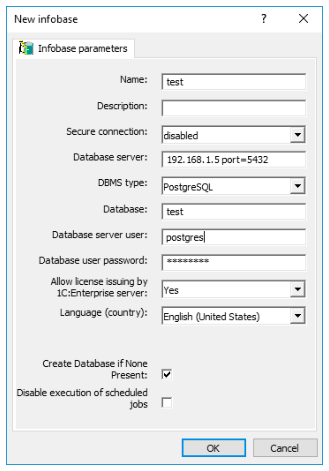
{#intro-fig-7-1 num="7.1" caption="Connecting a 1C infobase to PostgreSQL" .book-original-figure width=219 height=314}
In configuration settings of the 1C information database, specify the IP-address and port of the PostgreSQL server as your database server and choose “PostgreSQL” as the required DBMS type. Specify the name of the database that will be used for 1C and select the “Create database if none present” check box (do not create this database using PostgreSQL means). Provide the name and password of a superuser role that will be used to establish connections.
These recommendations should help you to quickly get started, even though they cannot guarantee optimal performance.
We thank Anton Doroshkevich from the Infosoft company for his assistance in preparing these recommendations.