3 Installation and Quick Start
Web edition note. Before running the Debian or Ubuntu repository commands, read the installation correction: the source omits a space in
lsb_release -cs, and repository setup has changed since publication.
What is required to get started with PostgreSQL? In this chapter, we’ll learn how to install PostgreSQL and manage the corresponding service. In the next chapter, we’ll continue by creating a simple database and trying out some basic SQL queries.
We are going to use a regular (often called “vanilla”) distribution of PostgreSQL 17. Depending on your operating system, the process of installing and setting up PostgreSQL will differ:
If you are using Windows, read on.
To set up PostgreSQL on Linux-based Debian or Ubuntu systems, go to p. 30.
For other operating systems, you can view installation instructions online: www.postgresql.org/download.
You can also use Postgres Pro Standard 17: it is fully compatible with vanilla PostgreSQL, includes some additional features developed by Postgres Professional, and is free when used for trial or educational purposes. Check out installation instructions at postgrespro.com/products/download in this case.
Windows
Installation
Download the PostgreSQL installer, launch it, and select the installation language: postgrespro.com/windows.
The installer provides a conventional wizard interface: you can simply keep clicking the “Next” button if you are fine with the default options. Let’s go over the main steps.
Choose components (keep the current selection if you are unsure of what to choose):
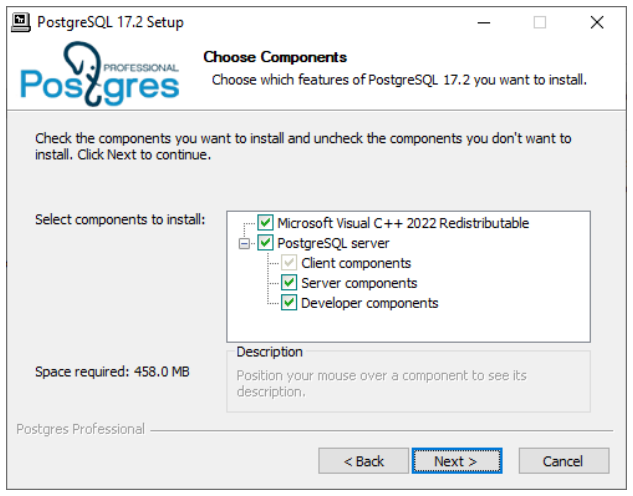
Then you have to specify PostgreSQL installation directory. By default, the PostgreSQL server is installed in C:\Program Files\PostgreSQL\17.
You can also specify the location of the data directory.
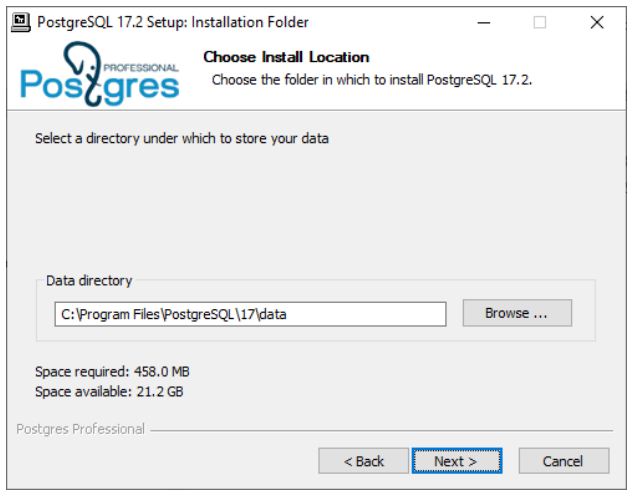
This directory will hold all the information stored in your database system, so make sure you have enough disk space if you plan to keep a lot of data.
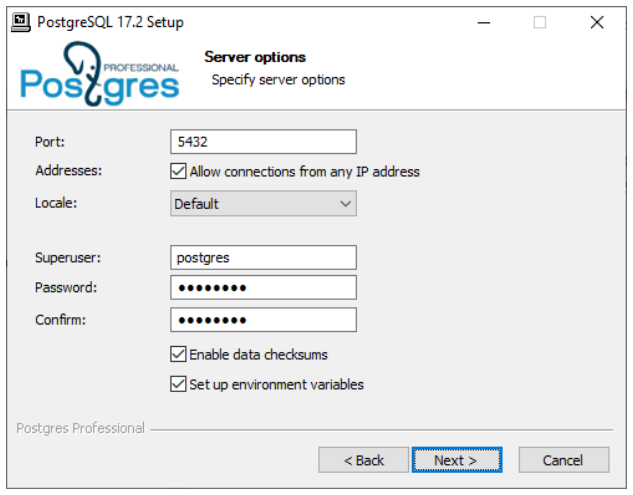
If you plan to store data in a non-English language, ensure that you select the corresponding locale (or leave it as “Default” if your Windows locale settings are correct).
Enter and confirm the password for the postgres database user. You should also select the “Set up environment variables” checkbox to connect to the PostgreSQL server as the current OS user.
You can leave the default settings in all the other fields.
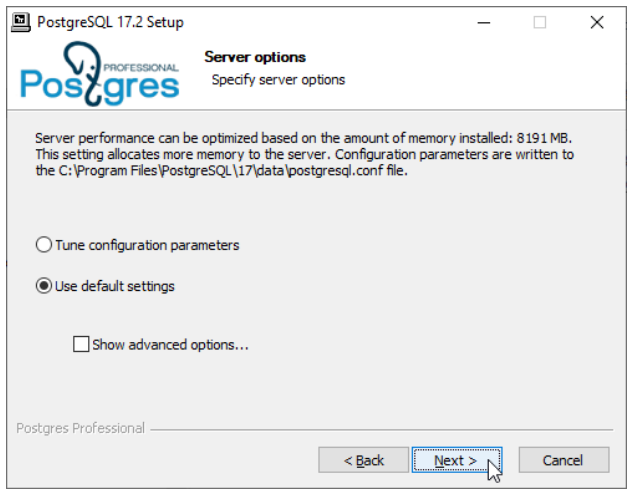
If you are planning to install PostgreSQL for training purposes only, you can select the “Use the default settings” option for the database system to take up less RAM.
Managing the Service and the Main Files
When PostgreSQL is installed, the “postgresql-17” service is registered on your system. This service is launched automatically at the system startup under the Network Service account. If required, you can change the service settings using the standard Windows options.
To temporarily stop the service, run the “Stop Server” program from the Start menu subfolder that you have selected at installation time.
To start the service, run the “Start Server” program from the same folder.
If an error occurs when starting the service, you can view the server log to find out its cause. The log file is located in the log subdirectory of the database directory chosen at installation time (you can typically find it at C:\Program Files\PostgreSQL\17\data\log). Logging is regularly switched to a new file. You can find the required file either by the last modified date or by the filename that includes the date and time of the switchover to this file.
There are several important configuration files that define server settings. They are located in the database directory. You do not have to modify them to get started with PostgreSQL, but you’ll definitely need them in real work. Take a look into these files; they are fully documented:
postgresql.conf is the main configuration file that contains server parameters.
pg_hba.conf defines access rules. For security reasons, the default configuration only allows local system access, requiring password authentication.
Now we are ready to connect to the database and try out some commands and SQL queries. Go to the “Trying SQL” chapter on p. 35.
Debian and Ubuntu
Installation
If you are using Linux, you need to add PGDG (PostgreSQL Global Development Group) package repository. At the moment, the supported Debian versions are 10 “Buster,” 11 “Bullseye,” and 12 “Bookworm.” The currently supported Ubuntu versions are 20.04 “Focal,” 22.04 “Jammy,” 23.10 “Mantic” and 24.04 “Noble”.
Run the following commands in the console window:
Once the repository is added, let’s update the list of packages:
Before starting the installation, check localization settings:
If you plan to process non-English data, the LC_CTYPE and LC_COLLATE variables may have to be configured. For example, it makes sense to set these variables to “fr_FR.UTF8” for the French language, even though the “en_US.UTF8” may do too:
You should also make sure that the operating system has the required locale installed:
If this is not the case, generate the locale, as follows:
Now we can start the installation:
It was the final step; once the installation command completes, PostgreSQL will be installed and launched. To check that the server is ready to use, run:
If all went well, the current PostgreSQL version is returned.
Managing the Service and the Main Files
When PostgreSQL is installed, a special postgres user is created on your system. All the server processes work on behalf of this user, and all the database files belong to this user as well. PostgreSQL will be started automatically at the operating system boot. It’s not a problem with the default settings: if you are not working with the database server, it consumes very little of system resources. If you decide to disable automatic startup, run:
To temporarily stop the database server service, enter:
You can launch the server service as follows:
You can also check the current state of the service:
If the service fails to start, check the server log for details. Take a closer look at the latest log entries in /var/log/postgresql/postgresql-17-main.log.
All information stored in the database is located in the /var/lib/postgresql/17/main/ directory. If you are going to keep a lot of data, make sure that you have enough disk space.
Server settings are defined by several configuration files. There’s no need to edit all these files to get started, but it’s worth checking them out since you’ll definitely need them in the future:
/etc/postgresql/17/main/postgresql.conf is the main configuration file that contains server parameters.
/etc/postgresql/17/main/pg_hba.conf file defines access settings. For security reasons, the default configuration only allows access from the local system on behalf of the database user that has the same name as the current OS user.
Now it’s time to connect to the database and try out SQL.